
Blackboard Ultra Gradebook Checklist
Use this checklist to ensure your Blackboard Gradebook is set up to correctly calculate student grades. If you have any questions about Gradebook, please submit a Blackboard Support request from OKTA. For more detailed directions, please see the Blackboard Ultra Gradebook Video Series in our Solution Center.
1. Add Categories
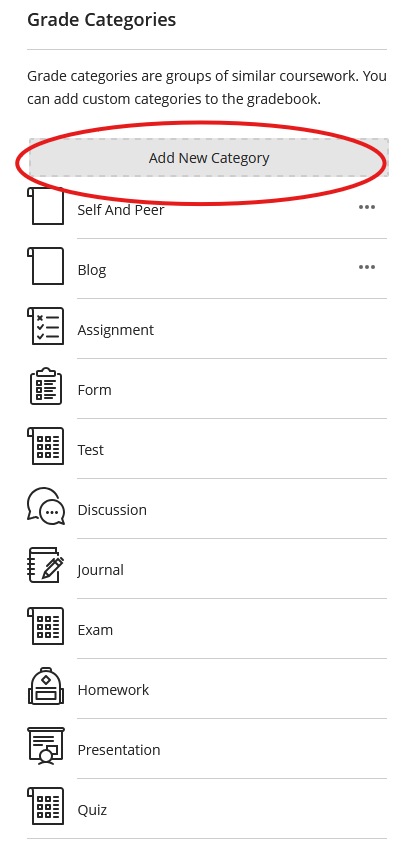
Blackboard has 11 preset categories, if needed, add categories as listed in your syllabus by using the Blackboard Gradebook settings gear icon and Add New Category.

2. Assign Categories to Gradable Items
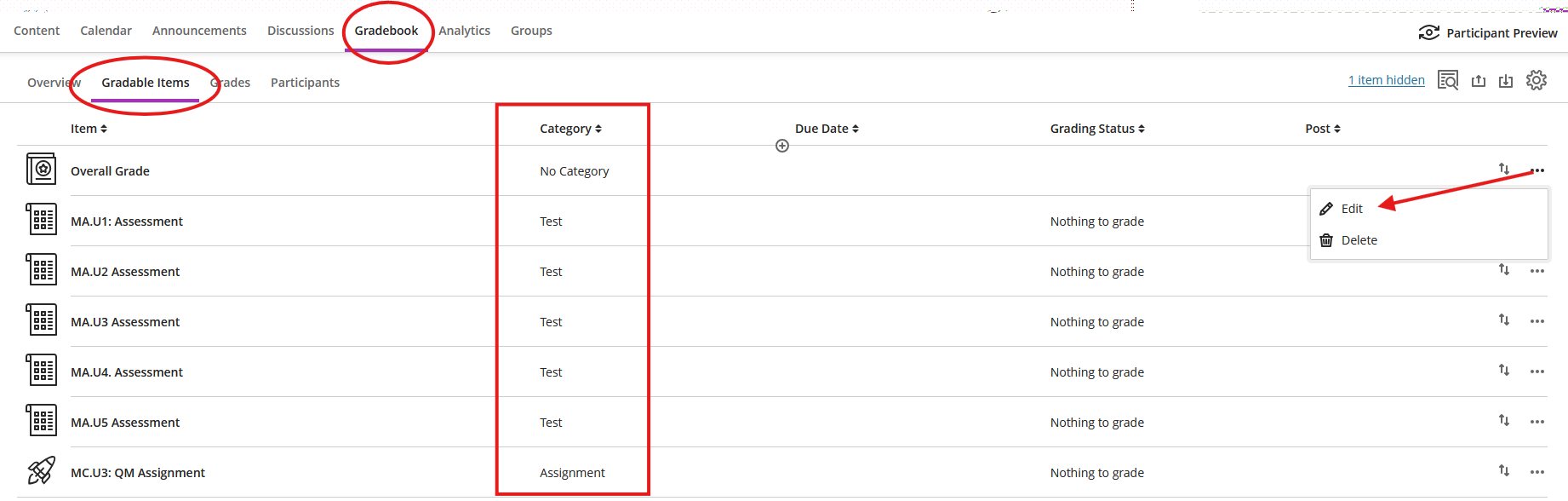
Use the three horizontal dots beside each Gradable Item to Edit and assign each graded item to the appropriate Category. This may also be done from the assessment settings menu.
3. Add Weights to Categories
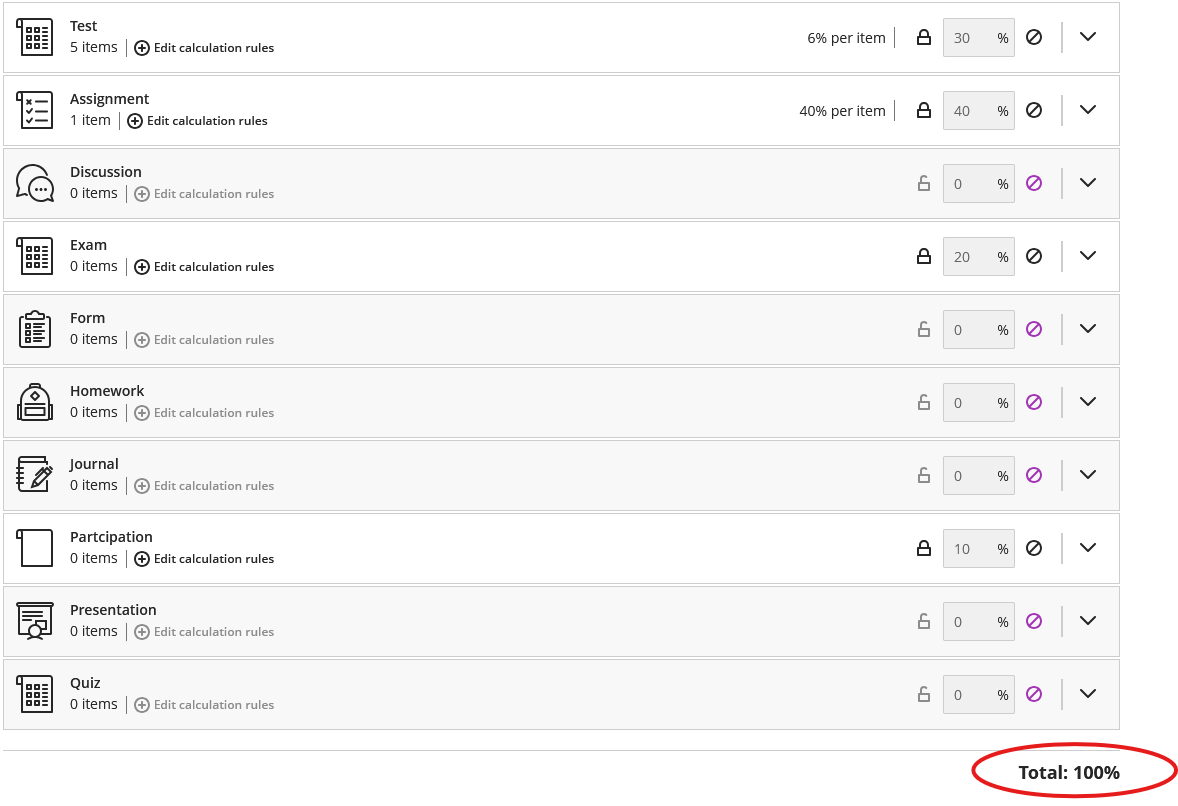
Make sure your Gradebook is set up to match the grading policy stated in the syllabus. Set grade categories and weights accordingly. Ensure the total equals 100%.
4. Select Weighted
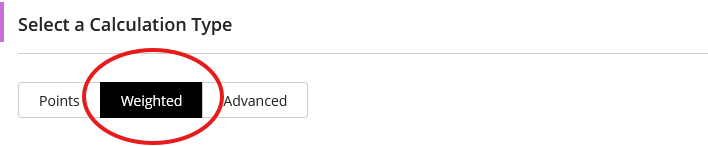
Set the Gradebook calculation type to Weighted.
5. Select Equally
Grade items within a category Equally unless otherwise specified by your department chair or division dean.

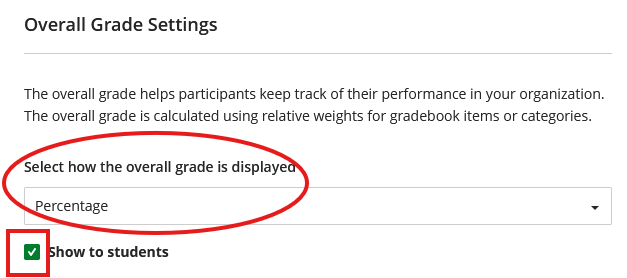
6. Select Percentage
Select how the overall grade is displayed to Percentage and ensure the "show to students" box is checked.
7. Set Schema to Letter
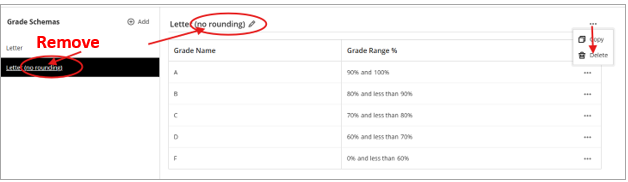
Use the pencil icon to remove the parenthetical no rounding from the Grade Schema so it reads "Letter". If there is already a Grade Shema called Letter, you can delete the schema called “Letter (no rounding)” by using the three horizontal dots to the right of the schema and selecting delete.
Ensure there is not a space after the word Letter. The Confirm Your Grade Schema solution article further explains the importance of this step.
Additional Information and Technical Support
Additional information is available in the solution article Blackboard Ultra Gradebook Set-Up.
For more information, visit the TCSG/GOLD training site. Use the keyword Gradebook to search the news.
For further assistance, please submit a Blackboard Support Request.