
Blackboard Bb_Admin Accounts
TCSG/GOLD moved all Admin level Blackboard accounts to Okta SSO for logging in. Please follow the steps below to establish your new SSO login credentials and sign into Blackboard in your Admin role.
Blackboard Admin accounts must be accessed every month or the account will be automatically deactivated.
Logging in for the first time
Important requirement before beginning: Sign out of your ATC Okta SSO, and open either a new private or incognito browser window, or a different internet browser. For example, if you use Chrome for your usual web-oriented work, you can open an incognito window OR you can use Firefox for only your Admin account access.
You will continue to use your regular Chrome windows for other work, including accessing your Faculty Blackboard account.
1. In your private window or new browser window, go to https://athenstech.blackboard.com/ and click to log in.

2. In the username field, enter your "fake email address" as set up by TCSG/GOLD. This address is bb_youremailaddress@athenstech.edu. For example, my username for Blackboard SSO is bb_arobison@athenstech.edu.

3. Enter the temporary password provided to you in an encrypted email message. It is important that you enter this exactly as sent. Click on the "eye" icon in the text field so you can see the password. For example, make sure it hasn't been auto-corrected so that the first letter is capitalized.

4. Choose a new password, and pay special attention to the password requirements.

5. Set up a security question.

6. Choose a method for two-factor authentication.
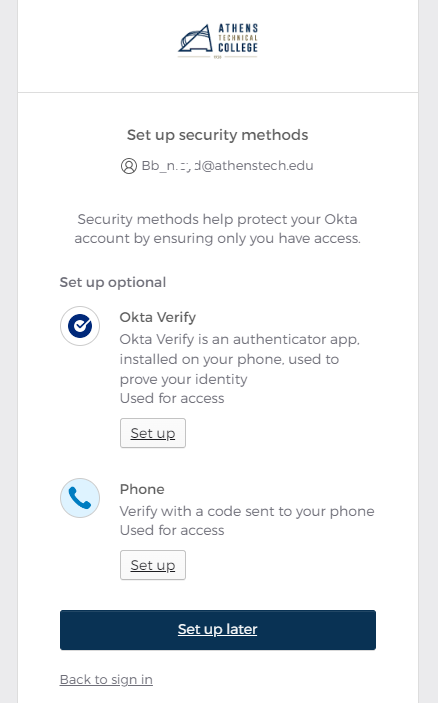
7. Enter the code provided by your two-factor authentication method.

8. You may be asked to set up an optional second method for two-factor authorization. You can skip this step by choosing Set Up Later.

9. You will now be logged into Okta SSO using your BB Admin account. You should not need to use tow-factor authentication to sign in again unless you are off campus.
IMPORTANT NOTE: This is NOT the same Okta SSO page that you access using your regular Athens Tech email address and password!
The only icon that works here is the Athens Tech Blackboard button! You will need to return to your regular browser window and sign in to your ATC Okta landing page to access your other ATC web services and platforms.

Additional Information and Technical Support
Additional information is available on the TCSG/GOLD training website. Use the keyword Point of Contact (POC) to search the news.
For further assistance, please submit a Blackboard Support Request.