
Remember, Ally is just one tool available for faculty to help improve the accessibility of course content in Blackboard. Ally may not catch all accessibility issues. Any content that doesn't score 100% should be reviewed to determine how to make the content compliant. Follow the steps below to access the Blackboard Ally Accessibility tool.
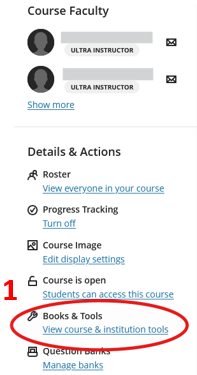
- After entering your Blackboard Course, locate the “Details and Actions” section on the far right-hand side under the “Course Faculty” menu and select “Books & Tools”.
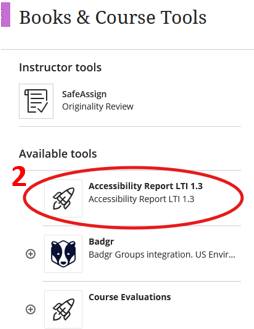
2. After selecting the Books & Tools option, select “Accessibility Report LTI 1.3”.
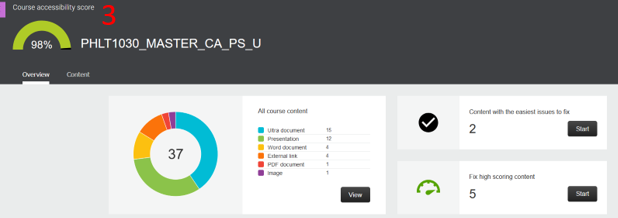
3. Review the Blackboard Ally Accessibility Score Report and fix low-scoring content accordingly.
Additional Information and Technical Support
Ally Quick Start for Instructors offers how-to guides and topics for creating accessible content.
The Blackboard Ally Accessibility Checklist is a quick-start reference to creating more accessible course content. These low-effort adjustments can help make your course content more accessible.
For further assistance, please submit a Blackboard Support Request.