
Blackboard Gradebook View Options
Once inside the Gradebook, you may change how to view the Gradebook by selecting the “Overview”, “Gradable Items”, “View Grades”, “Students” option. Each view has its own function and is illustrated in detail below.
Overview Option
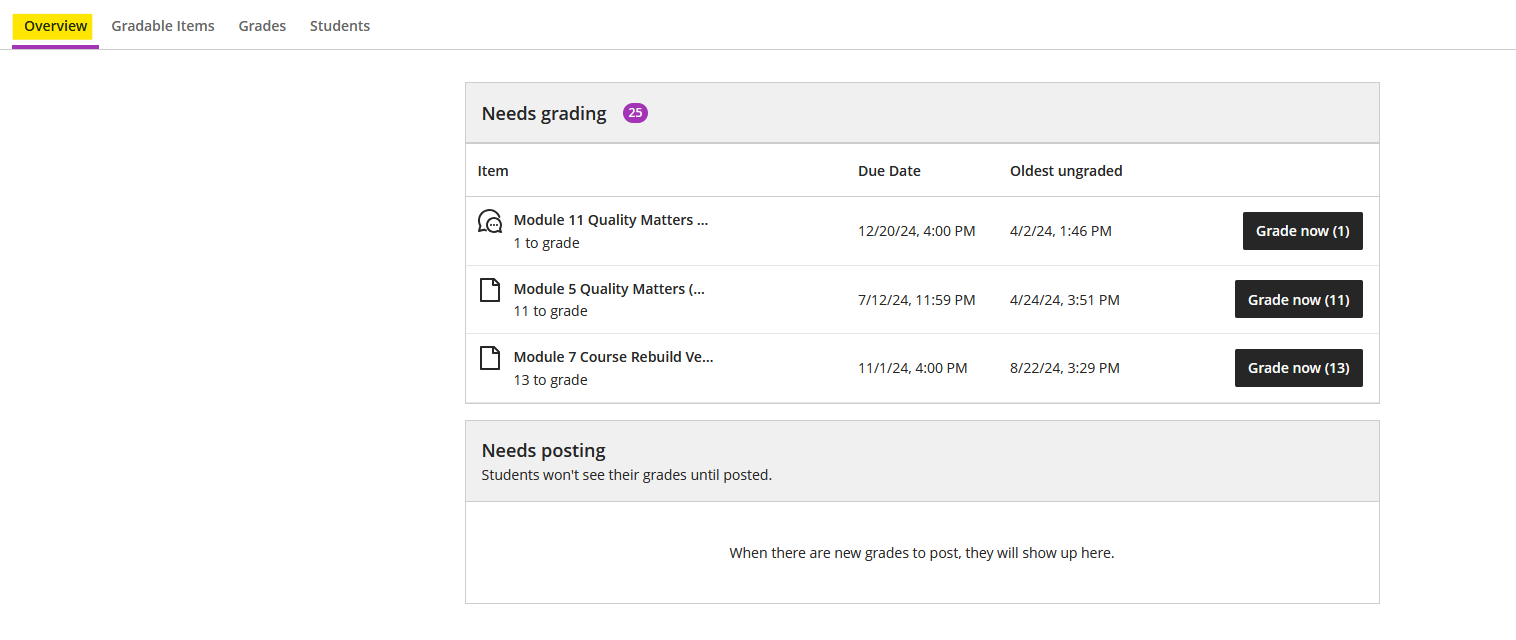
The “Overview” option (see image below) gives a quick overview of any items that need grading or posting within your course. This is an easy option that allows for quick gradebook reconciling and helps instructors stay current with grading.
Gradable Items Option
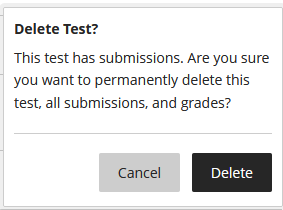
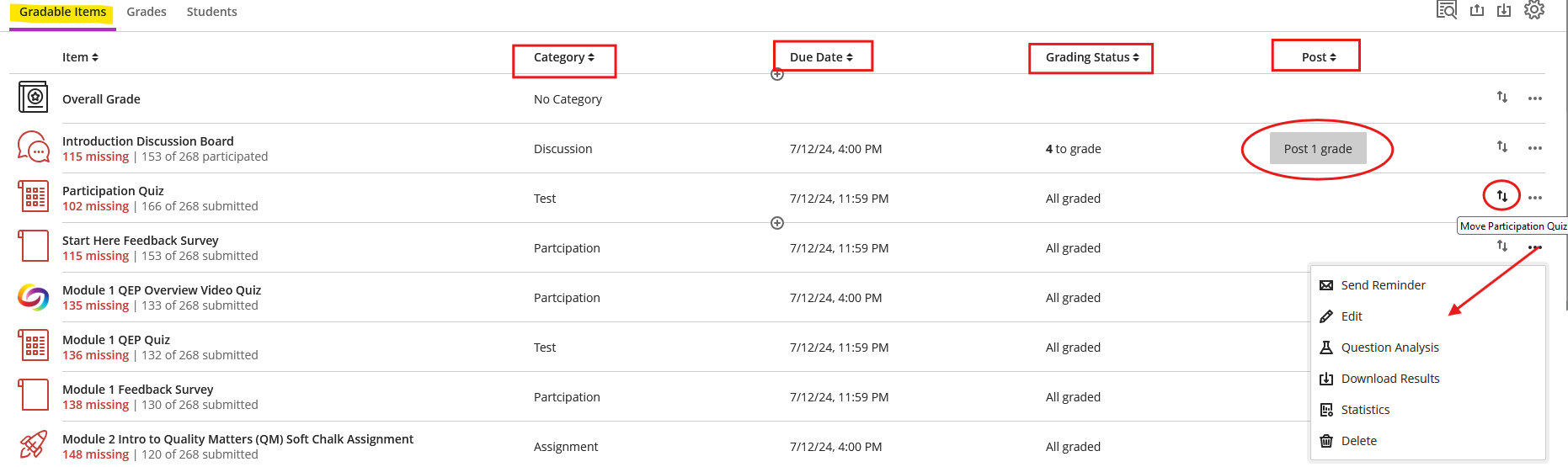
Viewing all “Gradable Items” (see image below) allows instructors to quickly check and ensure all items are assigned to the correct gradable category, view upcoming or past due dates, check the item’s grading status, and determine whether grades need to be posted to the Gradebook. These items may also be sorted by clicking the arrows beside each column. The up/down arrow beside each item in the far-right column allows you to quickly move the item to a new Gradebook location by dragging and dropping the item. The column with three dots in the farthest right-hand column gives several options that are dependent upon the gradable category. Some options include, “Send an email reminder”, “Edit” the item settings, “Question Analysis”, view item “Statistics”, and “Delete” the item. NOTE: Delete is not recommended for live courses as this will also delete any student submissions and grades.
Grades Option
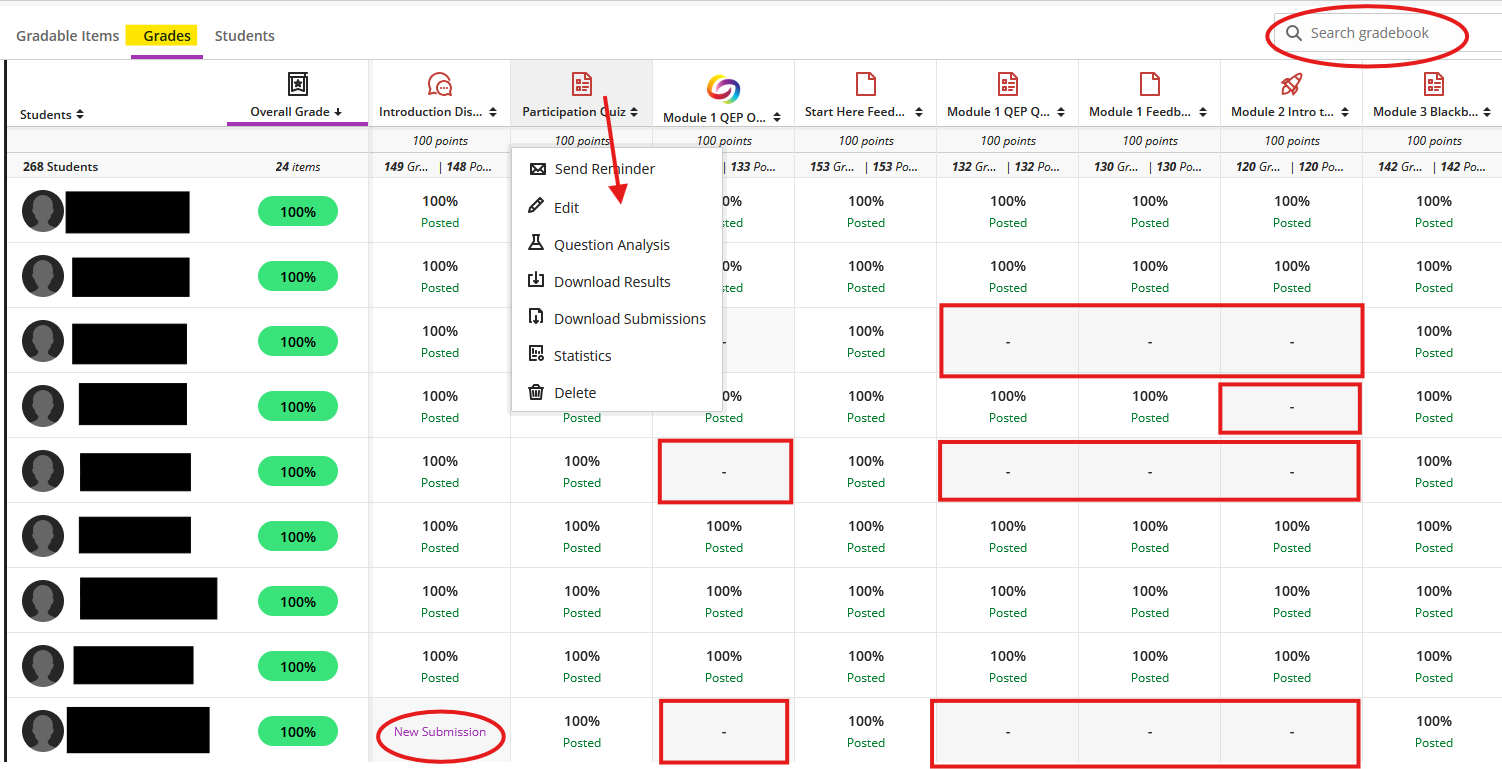
Viewing by “Grades” (see image below) allows instructors to quickly see the overall course grade, any items needing to be posted, and any missing graded items. Items may be quickly sorted using the arrows beside each gradable item, which is extremely helpful for quickly seeing items that require grading or any missing items. Like in the “Gradable Item” view, items may be clicked to select various options. One feature that is extremely helpful in this view is the “Search gradebook” feature, which allows you to search by student name, ID, column name, or category. NOTE: The students' names in this example have been obscured to protect privacy.
Students Option
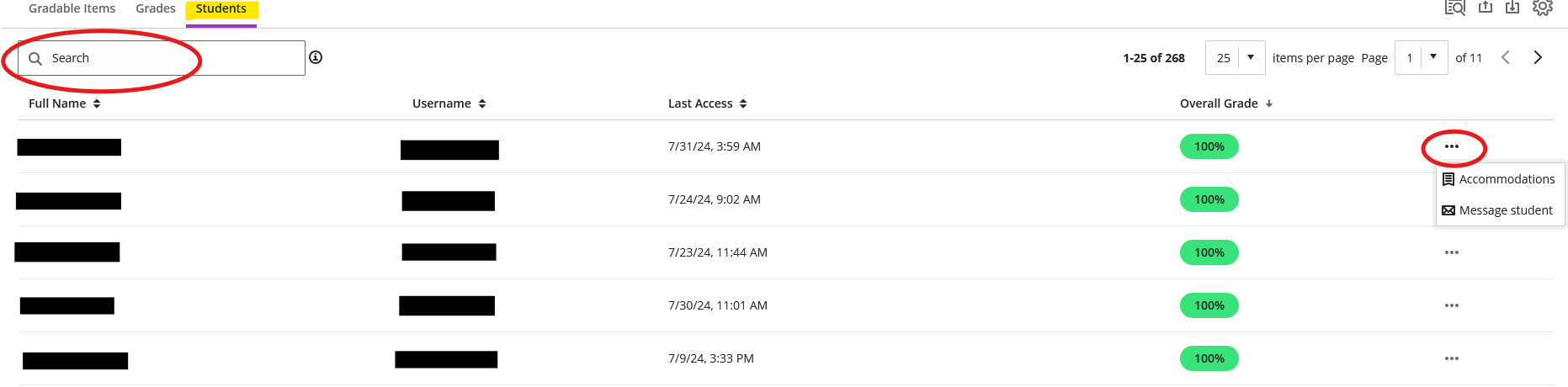
Viewing by “Students” (see image below) allows instructors to quickly see all the students enrolled in the course, the student's username, the date of last course access, and the overall course grade for each student. The three dots in the far right-hand column allow instructors to set any accommodations, such as extended time or due date for the student, and send a message directly to the student. Items may be quickly sorted by using the arrows beside each column. The “Search” feature, allows instructors to search by student first or last name and ID/Username. To view student's grades in detail, simply click on their name or username/ID. NOTE: This example's students' names and usernames/IDs have been obscured to protect privacy.
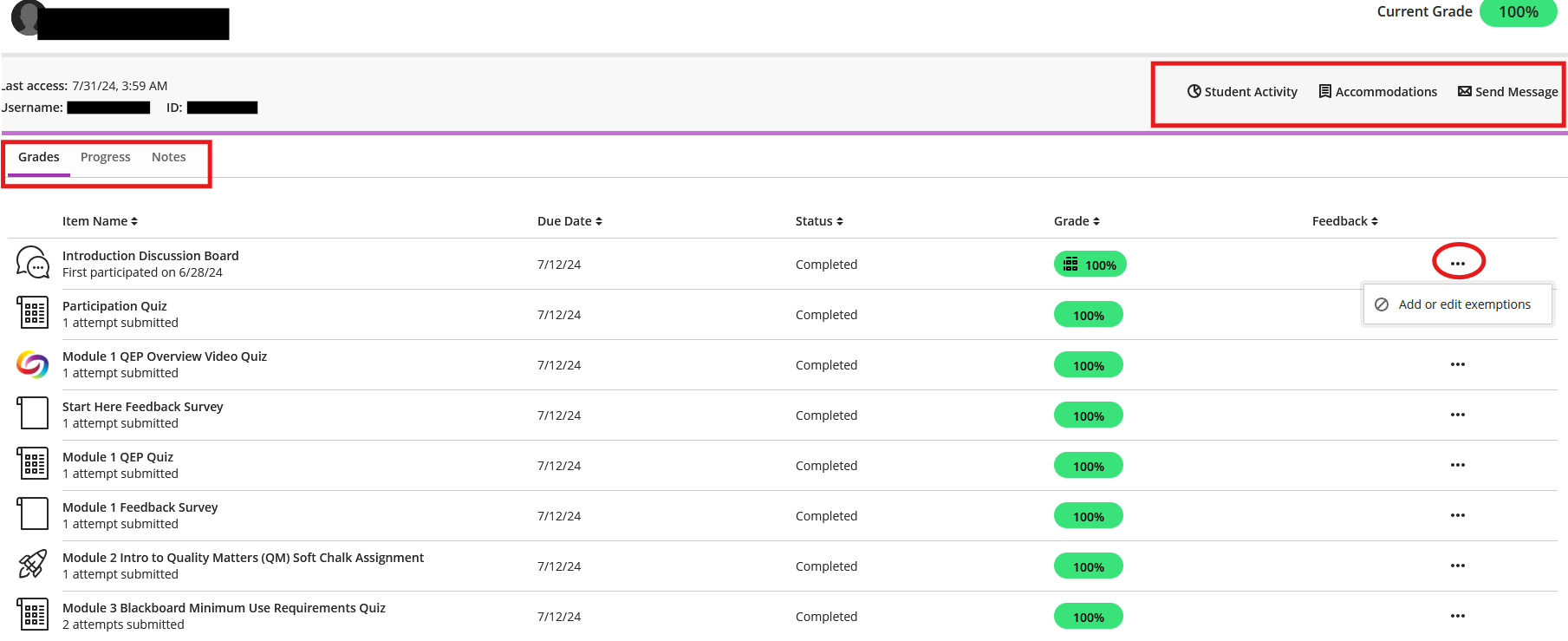
After selecting a student from the “Student” Gradebook view option (shown above), instructors may look at the student’s “Grades” for each item, the student’s course “Progress”, and make any internal “Notes” (see image below). CAUTION: Any notes are subject to Fair Use and Open Records; therefore, instructors should use discretion when making notes on students. The three dots in the far right-hand column allow instructors to add or edit exemptions. The options at the top of the page allow instructors to view a detailed “Student Activity” report, review or set “Accommodations”, such as extended time or extended due date, and “Send a message” directly to the student. NOTE: The student’s name and username/ID in this example have been obscured to protect privacy.
Conclusion
All ATC courses use Blackboard Ultra Gradebook. The Overall Grade is the external grade that pushes grades to Banner. It should be set using percentages; all categories should total 100%. Ensure grading categories match the categories from the course syllabus. It is possible to add manual entry columns for face-to-face or blended courses (see instructions above). Accommodations, such as extended time or due dates, can be set for individual students via the gradebook. The “Post Grades” button is used to post grades for students with graded work. Grades may be “posted” for individual student submissions or an entire class submission.
Additional Information and Technical Support
Additional information is available on the TCSG/GOLD training website. Use the keyword Gradebook to search the news.
For further assistance, please submit a Blackboard Support Request.