Qwickly Course Tools
Qwickly Course Tools streamlines communication with members of multiple courses and simplifies repetitive tasks for instructors. With Qwickly, instructors can post announcements, distribute content, and create discussion topics for multiple courses simultaneously in one convenient hub, saving time and reducing frustration.
The video below provides a brief overview of Qwickly Course Tools.
To Update Qwickly Course Terms
- Access your Qwickly tools administration from the Blackboard Books & Tools menu option.
- Manage course tools (see the important reminder about course tools below).
- Course filtering.
- The "Select Terms" radio button is already selected.
- Uncheck the term that has just ended and check the term that is just starting. NOTE: Please limit to the current term to keep a clean and streamlined list.
- Save your changes.
Important Reminder About Course Tools
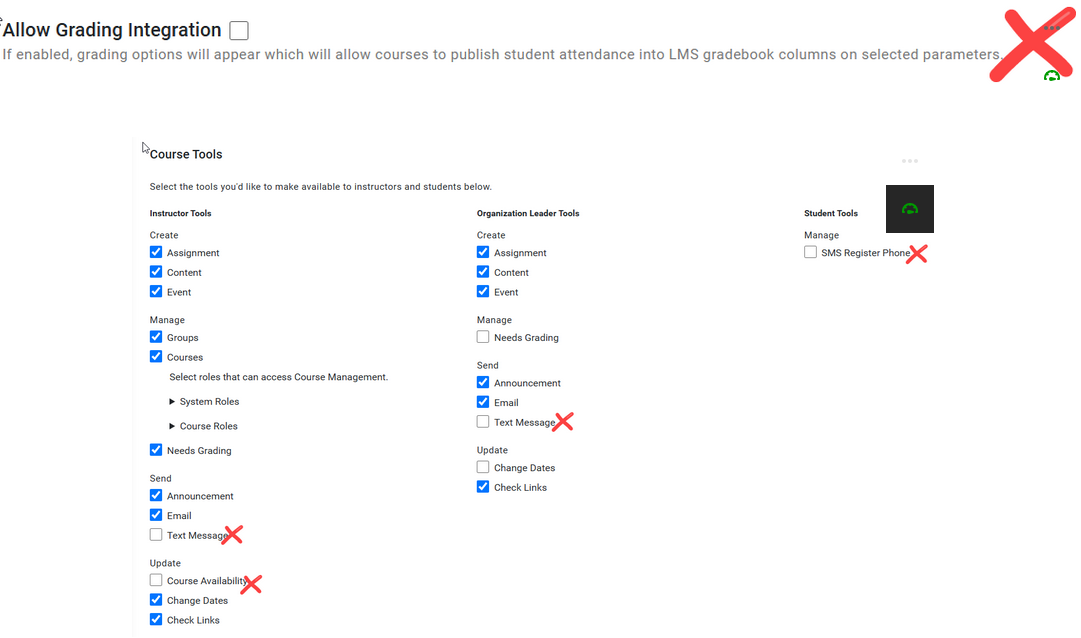
Make sure the boxes listed below and shown in the image stay unchecked as attendance is NOT graded.
- Text Messages (in any location)
- SMS Register
- Course Availability modifications
- Grading integration.