
Blackboard Notifications
Activity stream, email notifications, and mobile app notifications are all customized on a user level - not a system level.
Select Activity Stream from the left side menu, then select the GEAR icon as shown below.

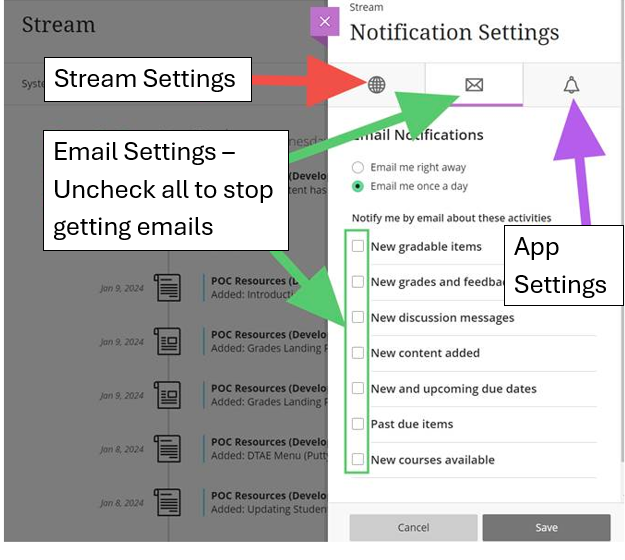
Choose from the Notification Settings options, then check or uncheck the items from each list as needed.
Emails in particular are frequently sent from the donotreply@blackboard.com address. The college cannot turn off the email notification. If a user does not want an email notification, they must uncheck EVERY checkbox under the email tab (see the screenshot below).
Additional Information and Technical Support
The Blackboard Learn Help Center provides detailed instructions for faculty and for students.
Additional information is available on the TCSG/GOLD training website. Use the keyword Activity Page or Notification to search the news.
For further assistance, please submit a Blackboard Support Request.