
Uploading a file from your computer to submit for an assignment.
Note that there is a 250MB file size limit for uploads. Please see this article regarding upload errors.
Note you must upload from a local computer hard drive. If your file is located in cloud storage such as Google Drive or One Drive, you must first download the file to your local computer's hard drive, then upload it to Blackboard.
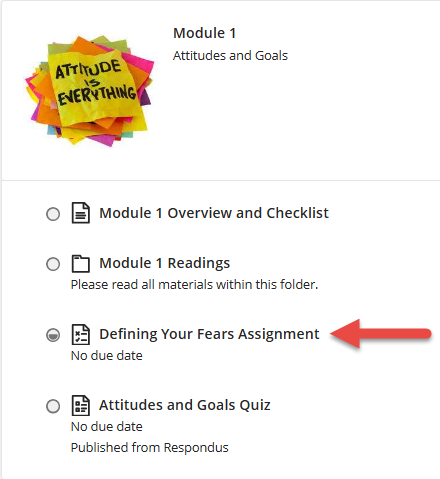
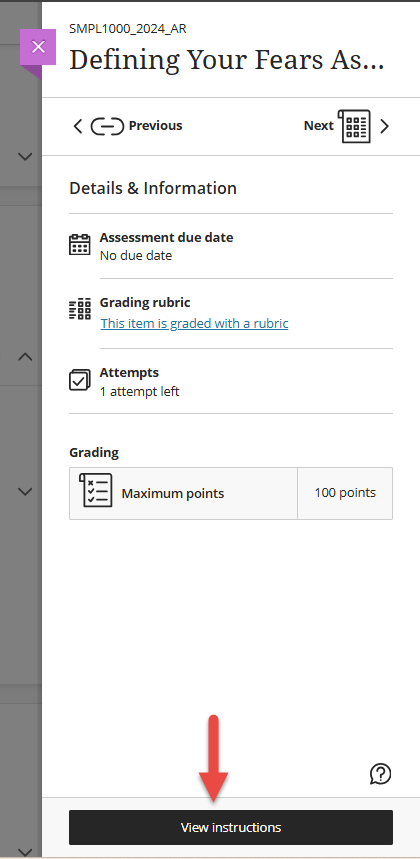
1. Select the assignment, then select the View Instructions button in the side panel.
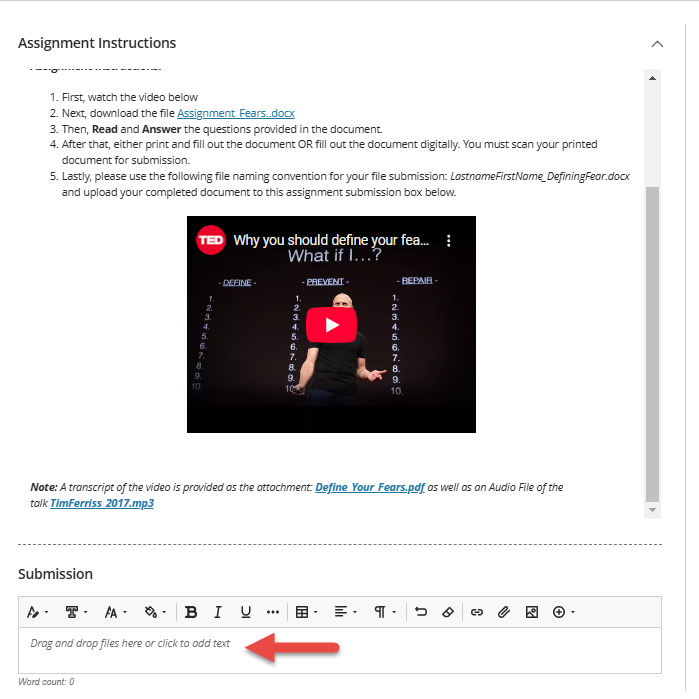
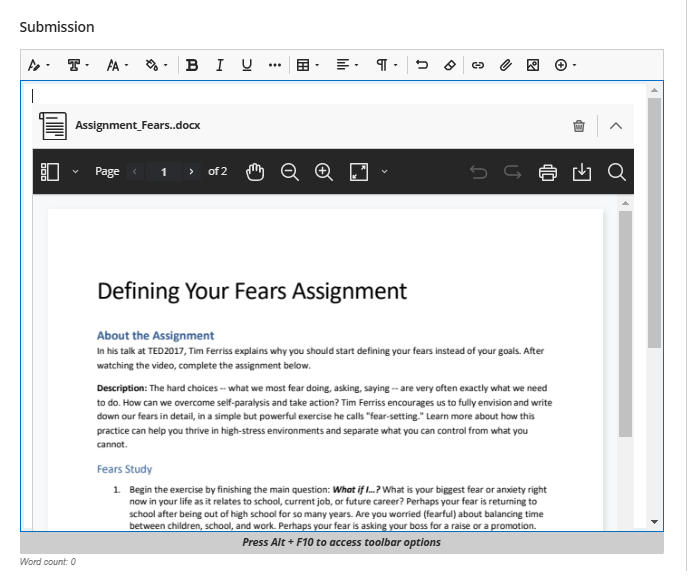
2. Review the assignment instructions, then scroll to the Submission box, and drag and drop your completed assignment file here.
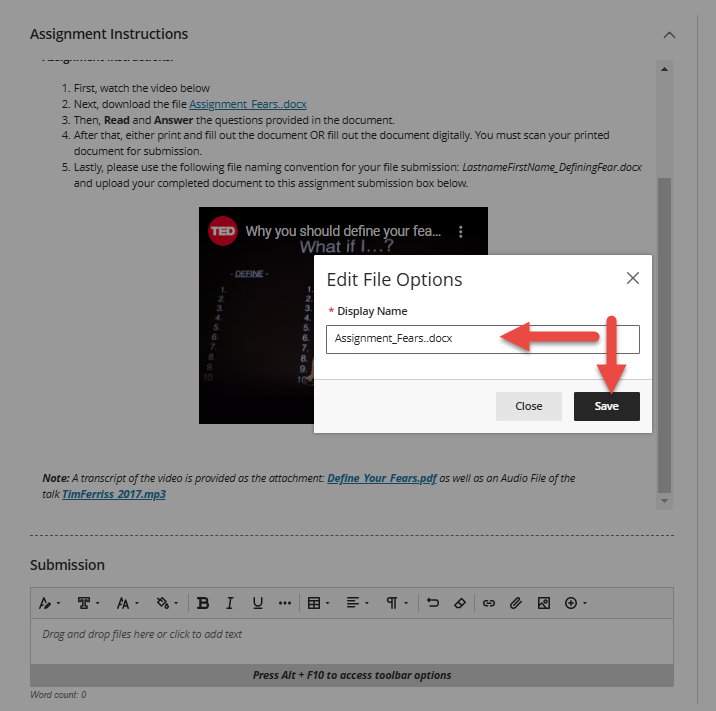
3. Edit your file name if required by the assignment instructions, then select Save.
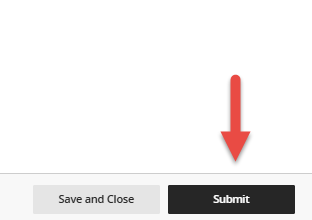
4. A preview of your submission will appear on the screen. Scroll down to preview it, then select Submit to submit your submission or save and close to return to the editing screen.
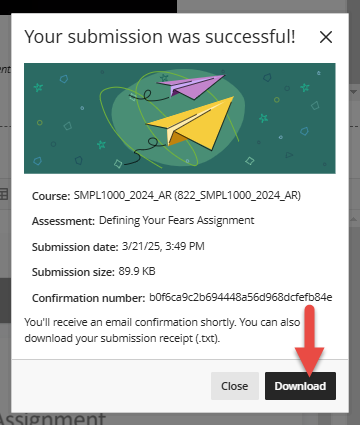
5. A confirmation window appears for your submission. Select Download to download a receipt of your submission.
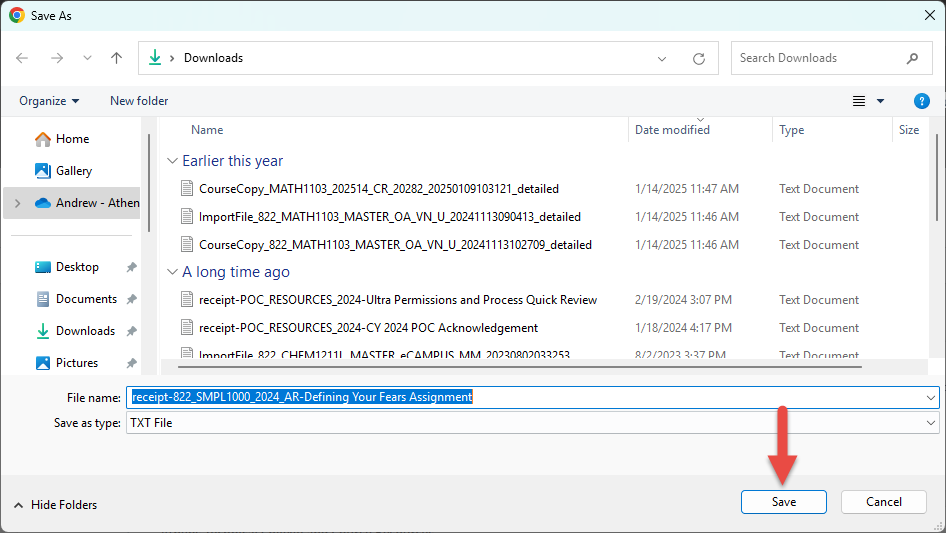
6. Save your receipt to your computer.
Additional Information and Technical Support
For further assistance, please submit a Blackboard Support Request.